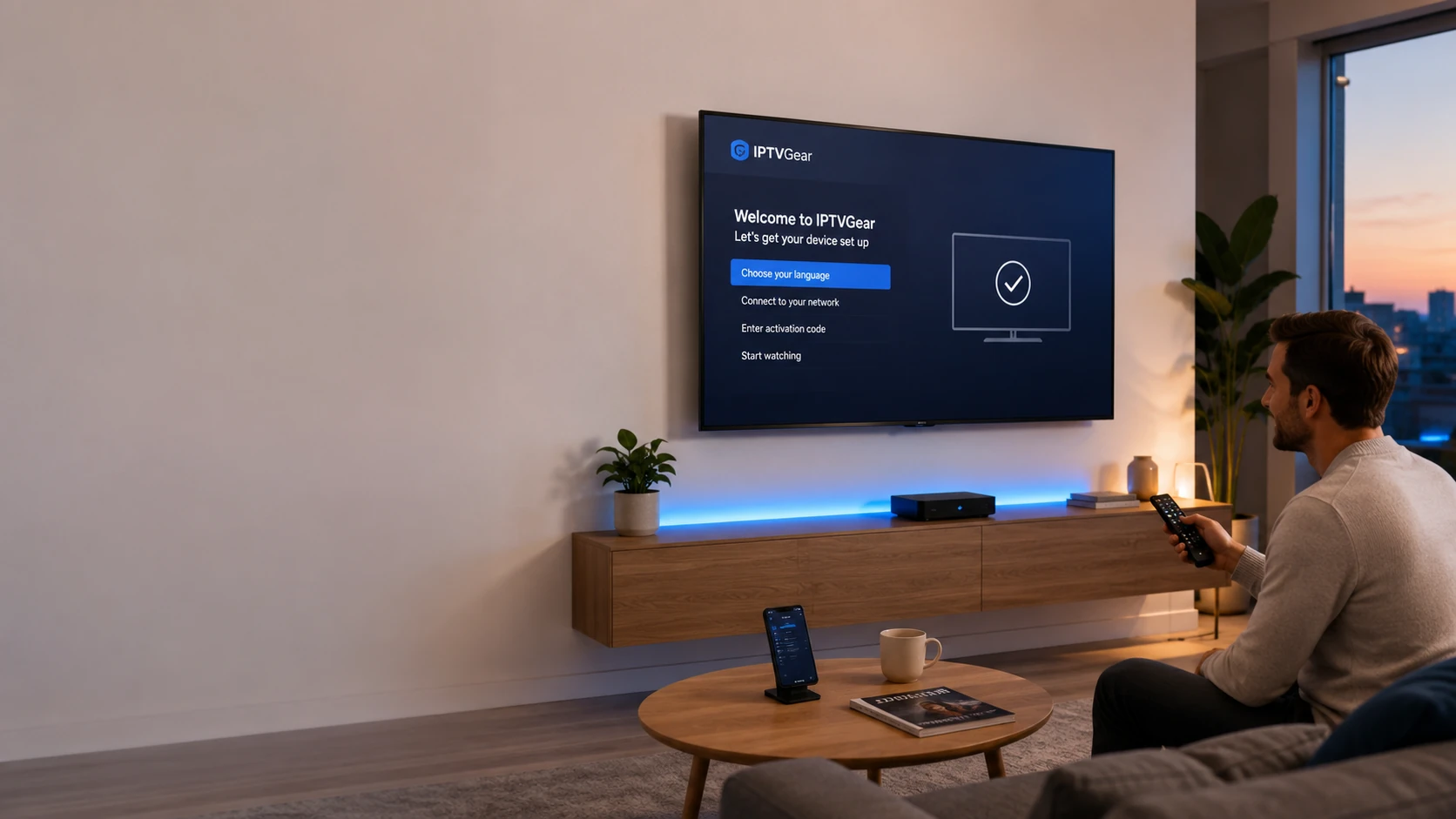
Setup overview

Prepare your device, then follow the right setup guide

Prepare the device and its normal connectivity, use the account or setup information supplied for an accepted Free Trial or subscription request, then choose the device-specific tutorial that matches the platform.

Preparing a device for IPTVGear with account and setup information

Four-part preparation

What every device setup needs

01

Confirmed account information

Relevant setup and account information is supplied for an accepted Free Trial or subscription request. Use the exact setup method shown in your message. The supplied format can differ by request, so copy every value carefully and keep the information private.

02

Stable connection

Confirm the device is connected. Complete large downloads before setup when practical, and pause other heavy network activity during initial testing if needed. Restart network equipment only when troubleshooting indicates it may help; not every setup or playback problem is caused by the connection.

03

Compatible player

Use the device's normal official app store where applicable, or an official publisher source specifically supported by the detailed guide. The player must support the setup or account format supplied to you.

04

Correct device guide

Choose by operating system or device platform, not simply by screen brand. The detailed tutorial provides the platform-specific navigation and player steps.

Choose the operating system

Open the matching detailed tutorial

Select the guide for the device platform you plan to use. Each route covers preparation, supplied account formats, numbered device steps, playback testing, troubleshooting, and support without duplicating those details here.

General setup sequence

Use this order

  1. 1

    Choose and install the player

    Use the normal source recommended for the platform and confirm that the player accepts the supplied setup method.

  2. 2

    Use the supplied information

    Select the matching account or playlist option and copy the provided values carefully.

  3. 3

    Allow the first load to finish

    Keep the player open while categories or programme information complete their initial refresh.

  4. 4

    Test one available entry

    Run a short playback test before changing settings or adding the same account again.

  5. 5

    Confirm navigation and playback

    Return to the guide and check that the device controls, picture, and sound respond normally.

  6. 6

    Prepare another device only if needed

    Additional devices can be prepared where appropriate while active playback stays within the selected connection level.

Simultaneous streams and prepared devices

Simultaneous connection count controls how many active streams can run at the same time. It does not necessarily equal the number of devices that may be prepared with an app installed. Review connection options on the Plans page.

When something fails

Troubleshoot from account to playback

Use the checks that apply to the symptom. Not every playback issue comes from the network.

  1. Check the supplied account or setup information for typing errors.
  2. Confirm the player or app supports the supplied setup method.
  3. Restart the player or app if it becomes unresponsive.
  4. Confirm the device has a working connection.
  5. Pause heavy downloads or other network activity during testing where relevant.
  6. Test another available entry where appropriate.
  7. Record the exact on-screen error message.
  8. Contact Support with the device type, player or app name, and error message if the issue continues.

Do not send passwords or account details publicly.

From request to device setup

A one-connection Free Trial may be used to explore current availability. Subscription plans are selected by duration and simultaneous connections. Relevant setup information is supplied for the accepted request, and the appropriate device tutorial then guides the remaining setup.

Ready when you are

Ready to continue your setup?

Start a Free Trial or choose a plan, use the relevant account information supplied for the accepted request, follow the matching tutorial, and contact Support if you need help.